Settings
Settings is where you change things about yourself and about the app. Your name, your email address, your password, the language everything appears in, and what happens when you complete an invoice.
Two ways to get there
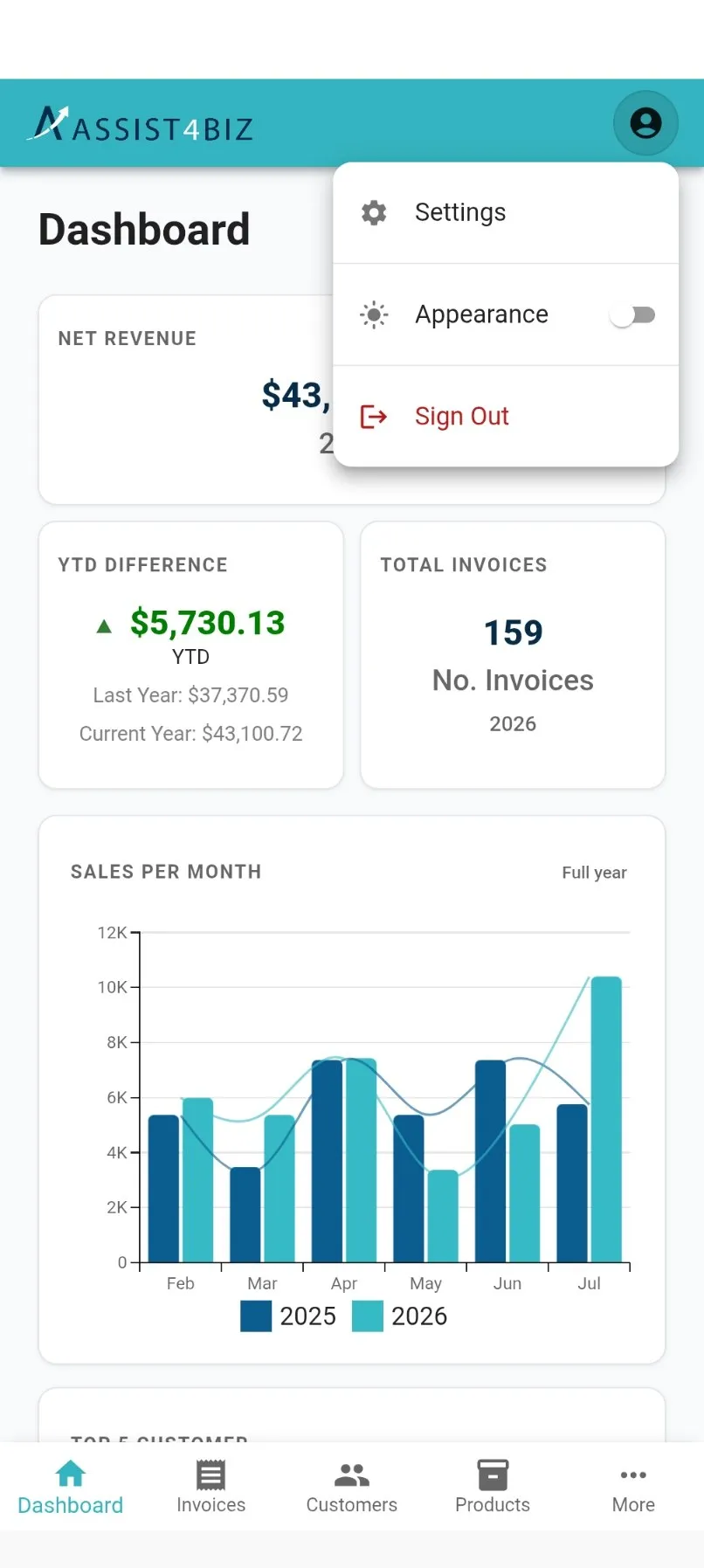
Section titled “Two ways to get there”Tap the round person button in the top right corner. A small menu opens with Settings, an Appearance switch for dark mode, and Sign Out.
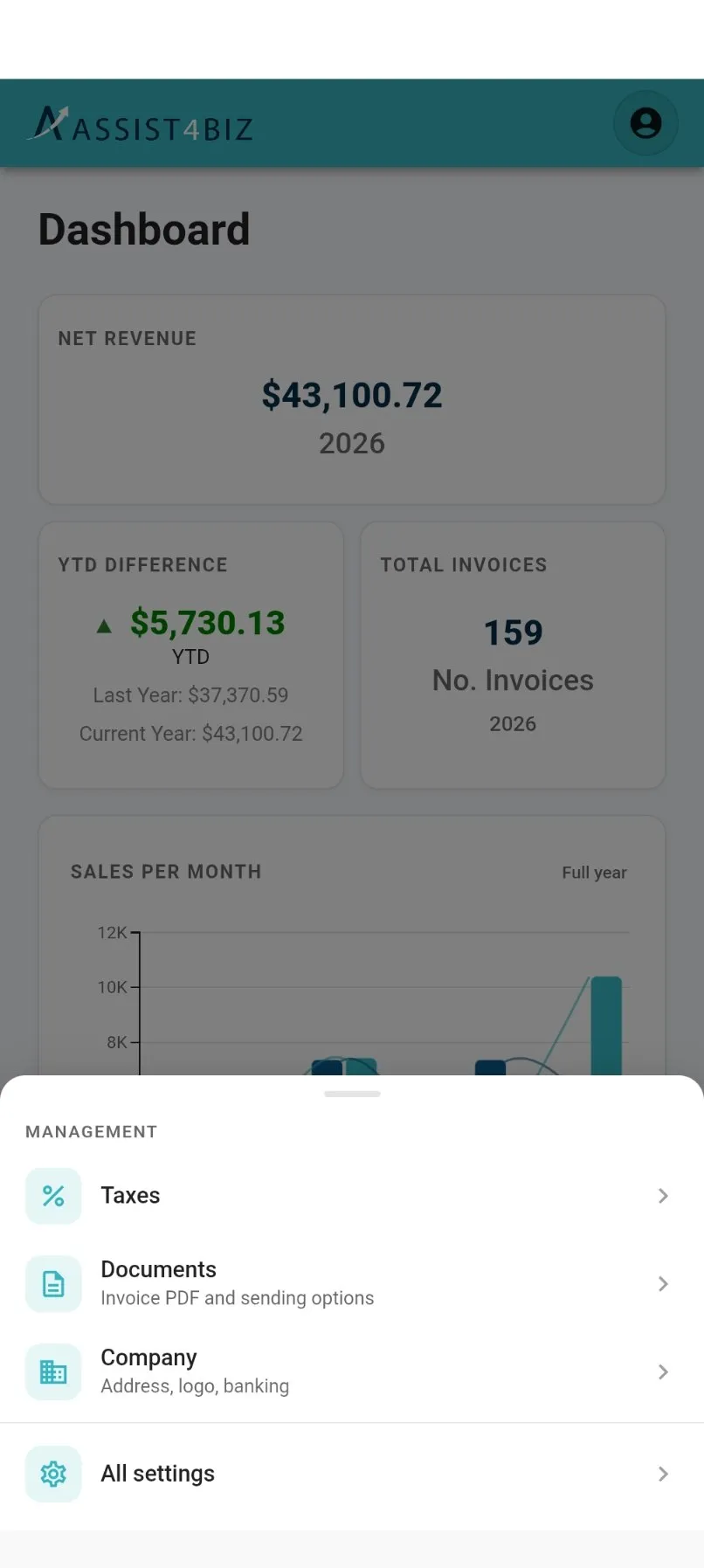
Or tap More at the bottom right, then All settings. The same sheet also takes you straight to Taxes, Documents and Company.
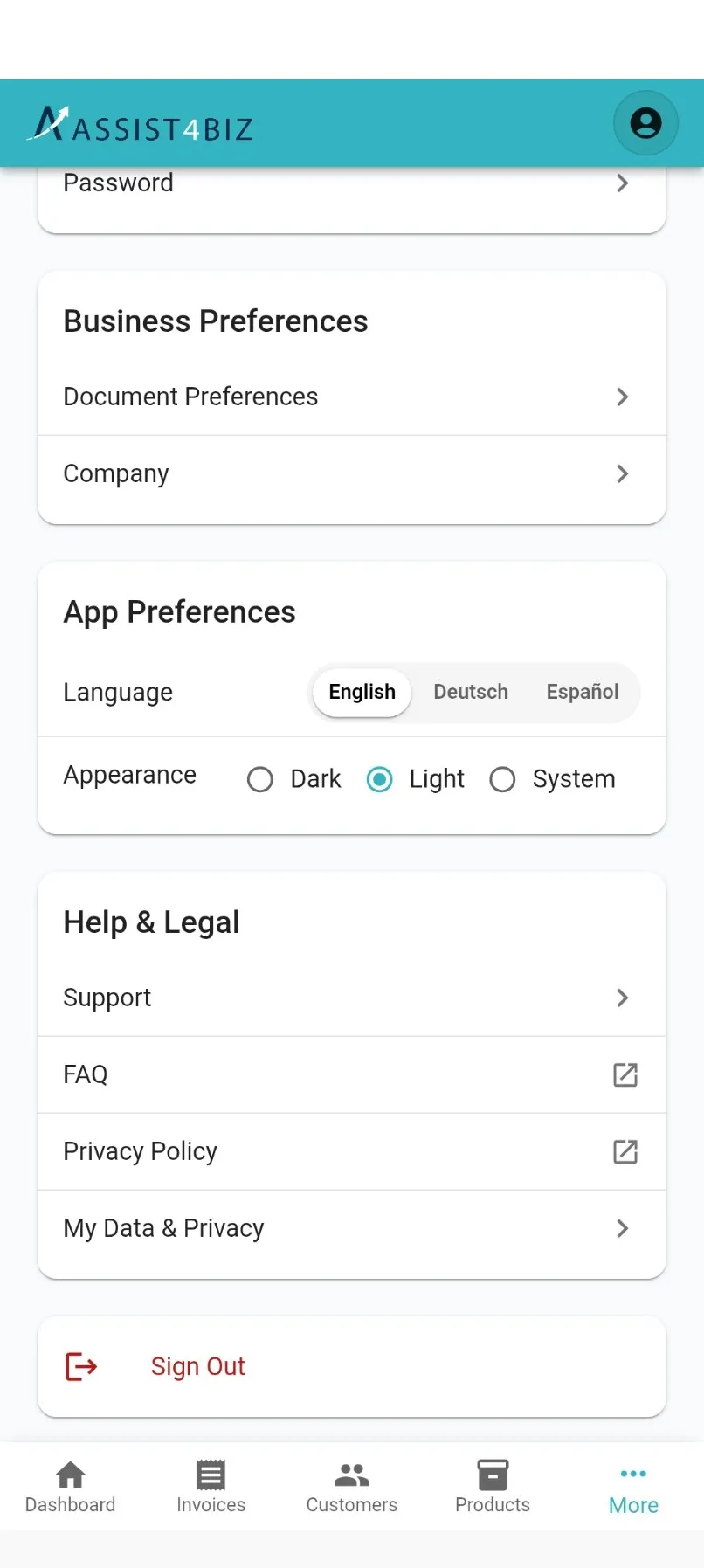
The top of Settings shows your name and your business name. Below that everything is grouped into Account, Business Preferences, App Preferences and Help & Legal. The Sign Out button sits at the very bottom.
Changing the language
Section titled “Changing the language”Assist4Biz comes in English, German and Spanish.
- Open Settings.
- Scroll to App Preferences.
- Tap English, Deutsch or Español next to Language.
The whole app switches over at once. Your choice is saved to your account, so it is still there the next time you sign in, and on any other device you use.
Underneath is Appearance. Choose Dark, Light, or System to follow whatever your phone is set to.
Updating your name and email
Section titled “Updating your name and email”- Open Settings.
- Under Account, tap Profile.
- Change the Full name box, the Mail box, or both.
- Tap Save.
Assist4Biz confirms that your profile has been updated. Your new name appears at the top of Settings straight away.
Changing your password
Section titled “Changing your password”You can change your password without signing out, as long as you know your current one.
- Open Settings.
- Under Account, tap Password.
- Type your Current password.
- Type your New password, then type it again in Confirm new password.
- Tap Save password.
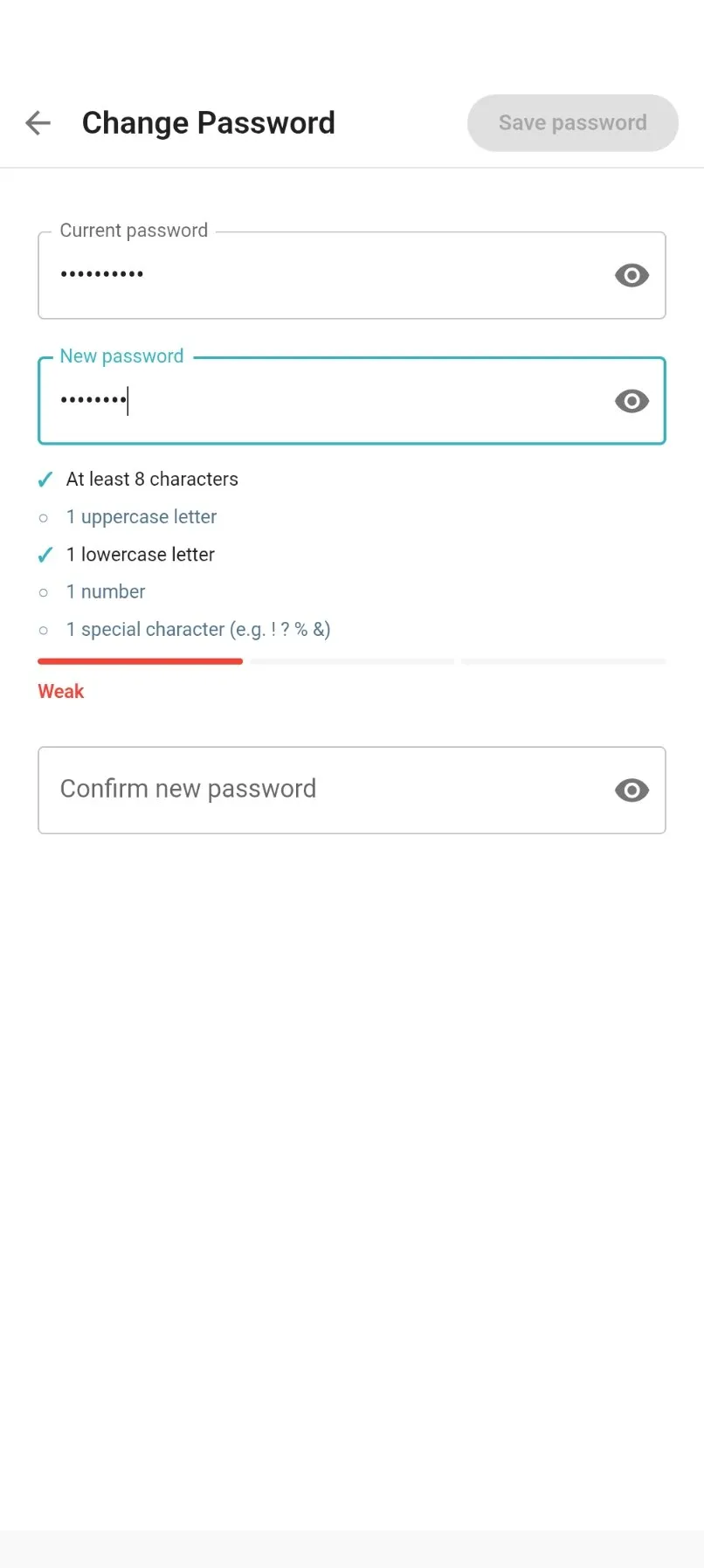
As you type, Assist4Biz ticks off each rule as you meet it and shows a bar telling you whether the password is weak, good or strong. A password needs:
- at least 8 characters
- one capital letter
- one small letter
- one number
- one special character, such as
!?%&
Save password stays greyed out until everything is in order, so you cannot save a password that will be rejected. Tap the eye on the right of any box to check what you have typed.
If you have forgotten your current password, you cannot change it here. Sign out instead, then use the forgotten password link on the sign-in screen. That sends a code to your email address.
Choosing how invoices are sent
Section titled “Choosing how invoices are sent”Under Business Preferences, tap Document Preferences. Three switches decide what happens when you complete an invoice.
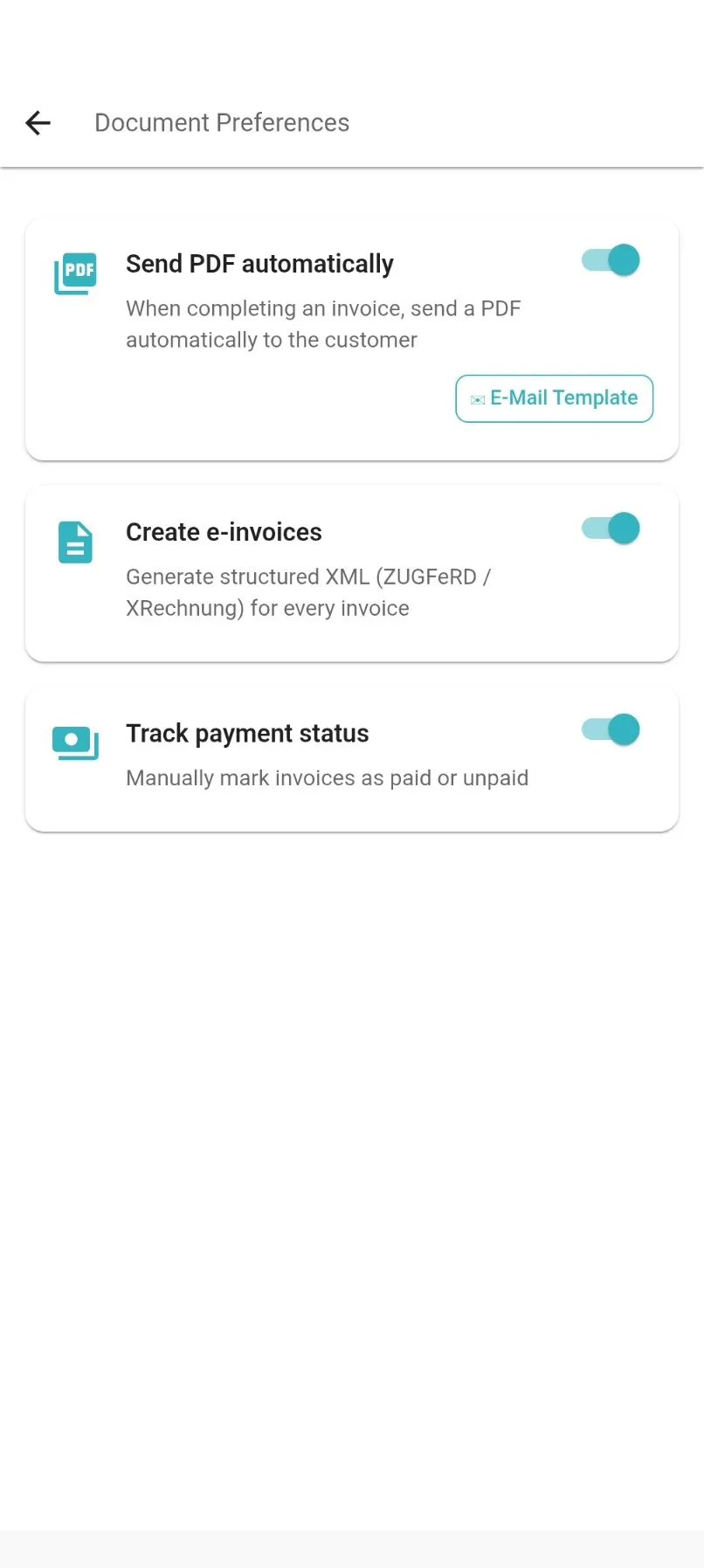
- Send PDF automatically. Completing an invoice emails a PDF of it to your customer there and then. Leave it off and nothing is sent until you send it yourself from the invoice menu. With this on, your customers need an email address on file.
- Create e-invoices. Produces a machine-readable copy of every invoice in the ZUGFeRD and XRechnung formats. In Germany many businesses are obliged to send these, above all when invoicing other businesses. Check whether that applies to you before you switch it off.
- Track payment status. Adds Paid and Unpaid to your invoices, so you can mark off what has come in. This is what puts the Open and Paid buttons above your invoice list.
The email that goes with your invoices
Section titled “The email that goes with your invoices”When Assist4Biz emails an invoice, it uses a message you write once. Tap E-Mail Template on the Document Preferences screen.
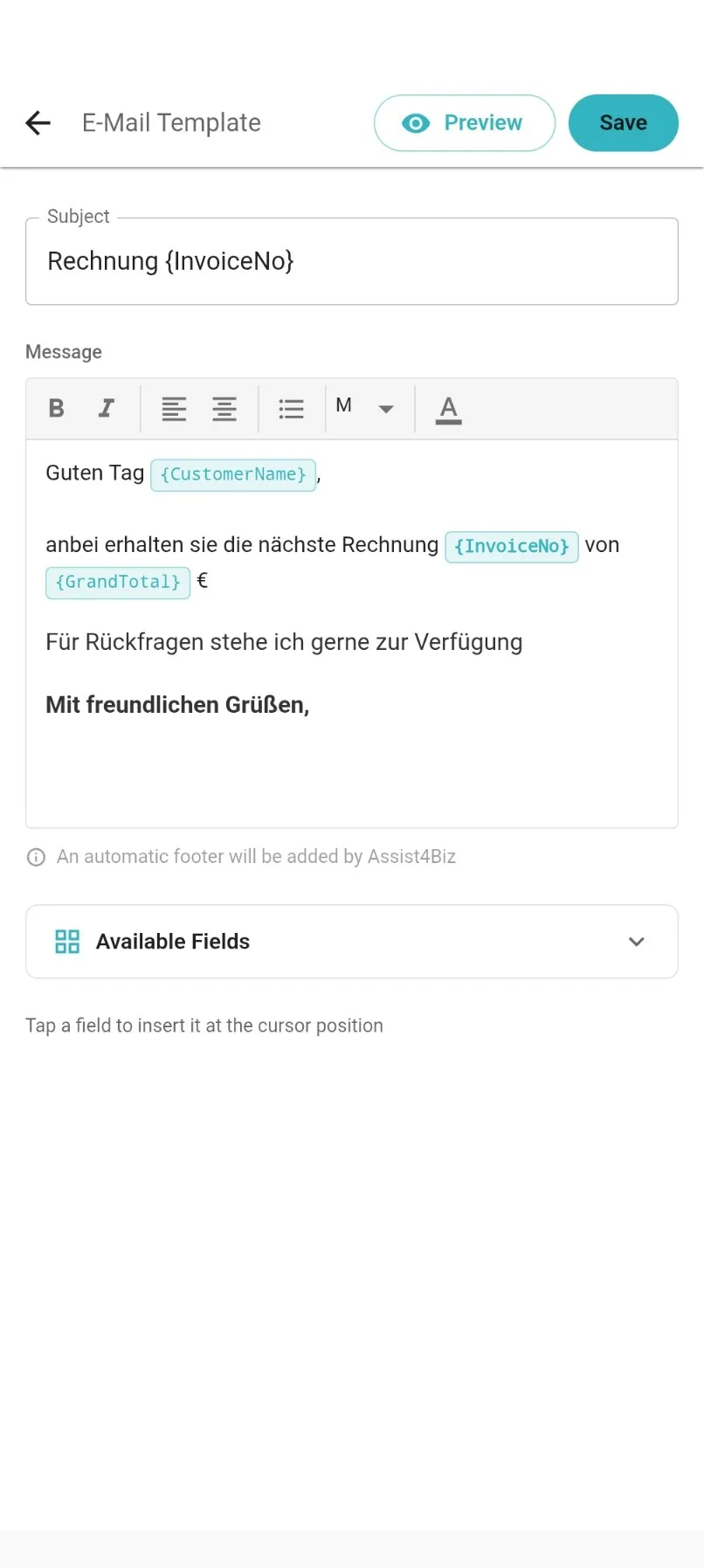
You get a Subject box and a Message box. The message has the usual formatting buttons for bold, italics, alignment, bullets, text size and colour.
The blue chips are placeholders. Assist4Biz swaps each one for the real thing as it sends. Open Available Fields and tap one to drop it in where your cursor is. You can use:
- Customer name
- Invoice number
- Invoice date
- Grand total
- Invoice description
Assist4Biz adds a footer to the bottom of every message, so you do not have to write one.
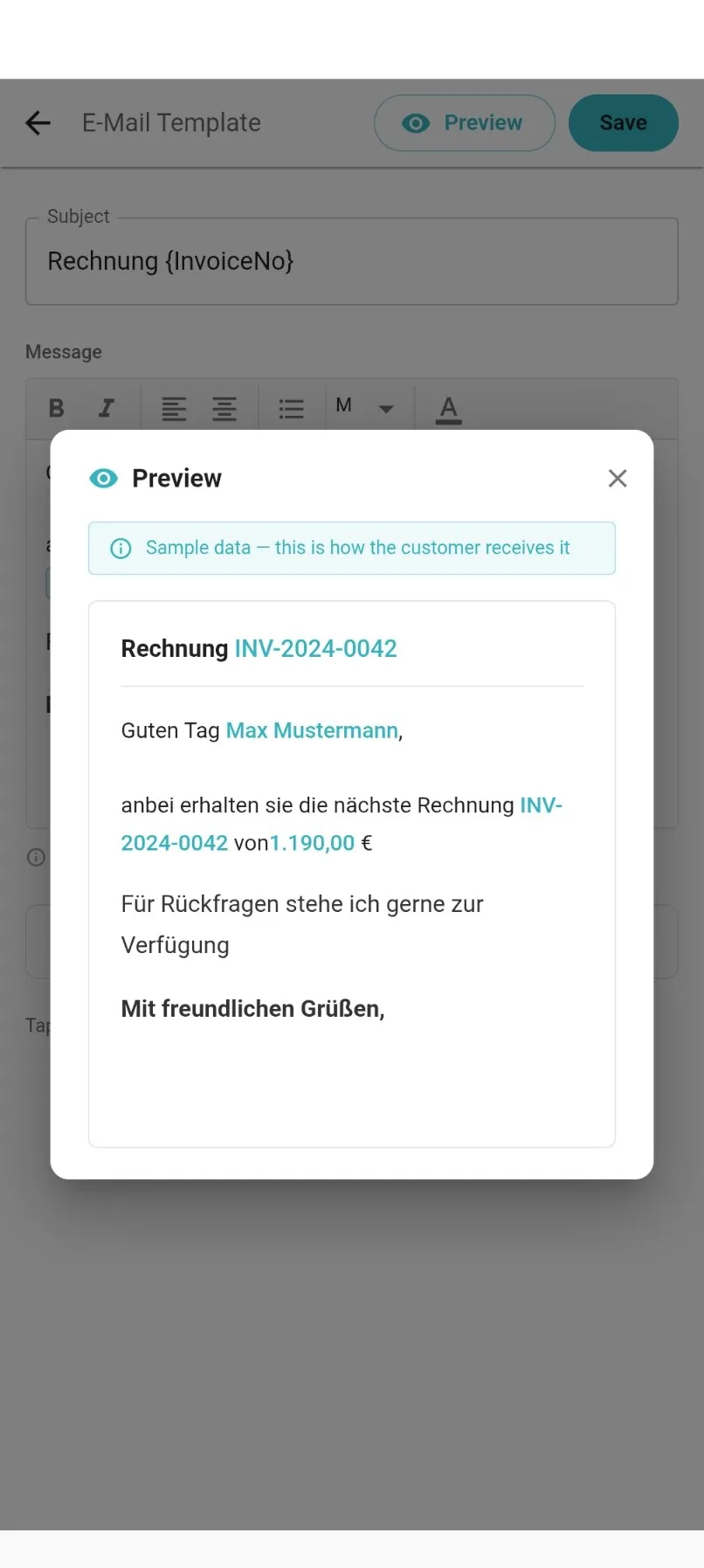
Tap Preview to see the message as your customer will get it, with sample details filled in. Nothing is sent from here, it is only a preview. Tap Save when you are happy.
Signing out
Section titled “Signing out”Sign Out is at the bottom of Settings, and also in the menu behind the person button in the top right corner.
You do not need to sign out after every use. Assist4Biz keeps you signed in so you can pick up where you left off.
Sign out when:
- you are lending your phone to somebody
- you are using a shared or public computer
- you want to sign back in as somebody else
After signing out you are taken back to the sign-in screen, and you will need your password to get back in.