Products
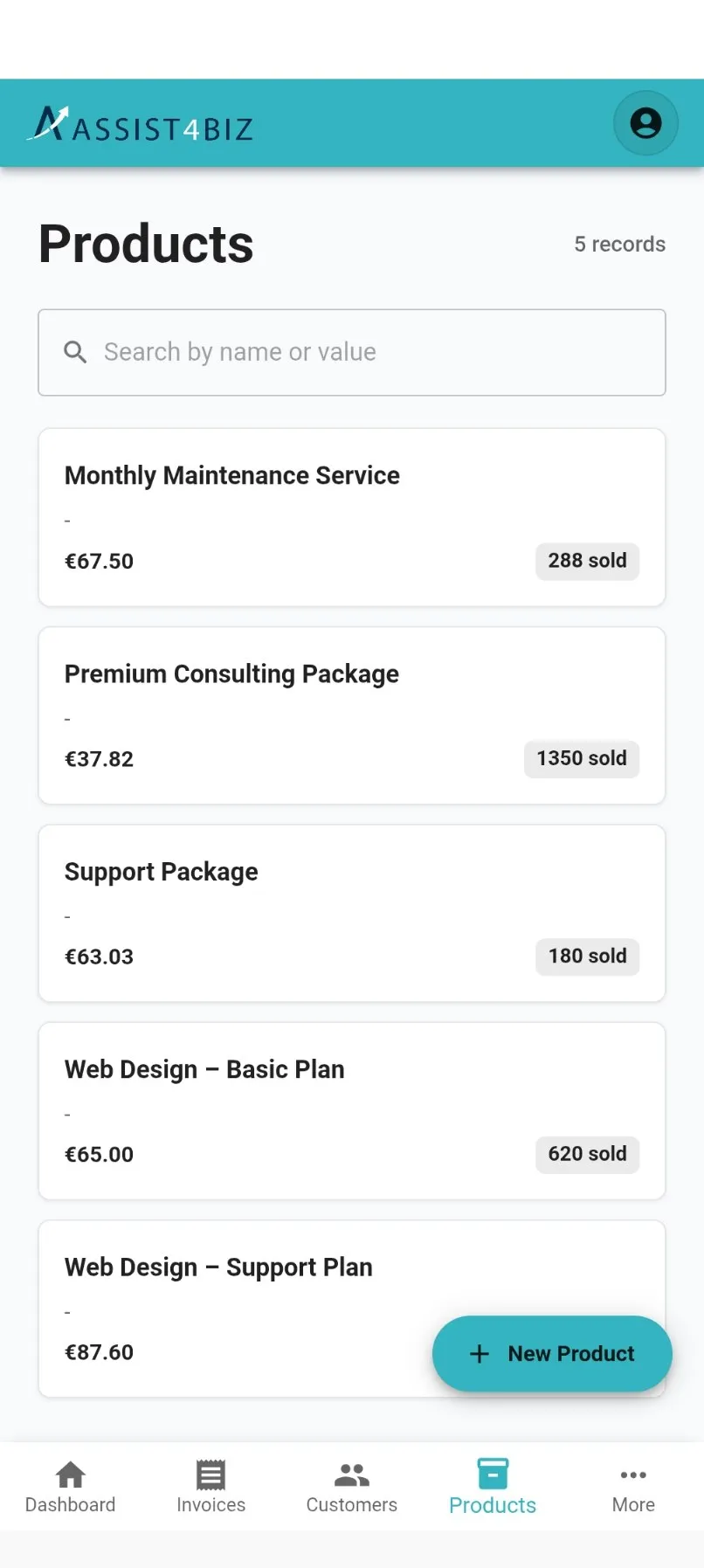
Products are the things you put on an invoice. That covers goods you sell, services you carry out, and hours you charge for.
Each product has a name, a short code, a unit and a price.
You add a product over five short screens, one topic at a time.
What you fill in
Section titled “What you fill in”| Box | What it is for |
|---|---|
| Name | The name you see on invoices and when picking a product. |
| Internal reference | A short code or article number. The search looks at both the name and this code, so a code you remember is often the quickest way to find something. |
| Description | More detail about the product, if you want it. |
| Can be sold | Whether you can put this product on an invoice. |
| Can be purchased | Whether this is something you buy in. |
| Product type | Either Item or Service. An Item is a thing you have on the shelf. A Service is something you do. |
| Available quantity | Only for Items. How many you have right now. |
| Category | Groups similar products together. It shows under the name on the card. You can add a new category as you go, see below. |
| Unit of measure | How you count it. Choose from Day, Each, Hour, Week, Month or Year. This is what shows on the invoice. |
| Price | Your usual selling price. It fills itself in when you add the product to an invoice. |
| Quantity sold | How much of this you have invoiced so far. It shows as a sold label on the product card. You cannot type in this one. |
Where one of the choices is your usual one, it is already picked for you.
Adding a product
Section titled “Adding a product”- Open Products and tap New Product.
- Product Information. The name, the internal reference and a description.
- Product conditions. Tick whether this product can be sold, bought in, or both.
- Type & Category. Choose Item or Service, then the category. If you choose Item, another box appears for how many you have right now. See below if the category you want is not there yet.
- Unit of Measure. How you count it: Day, Each, Hour, Week, Month or Year.
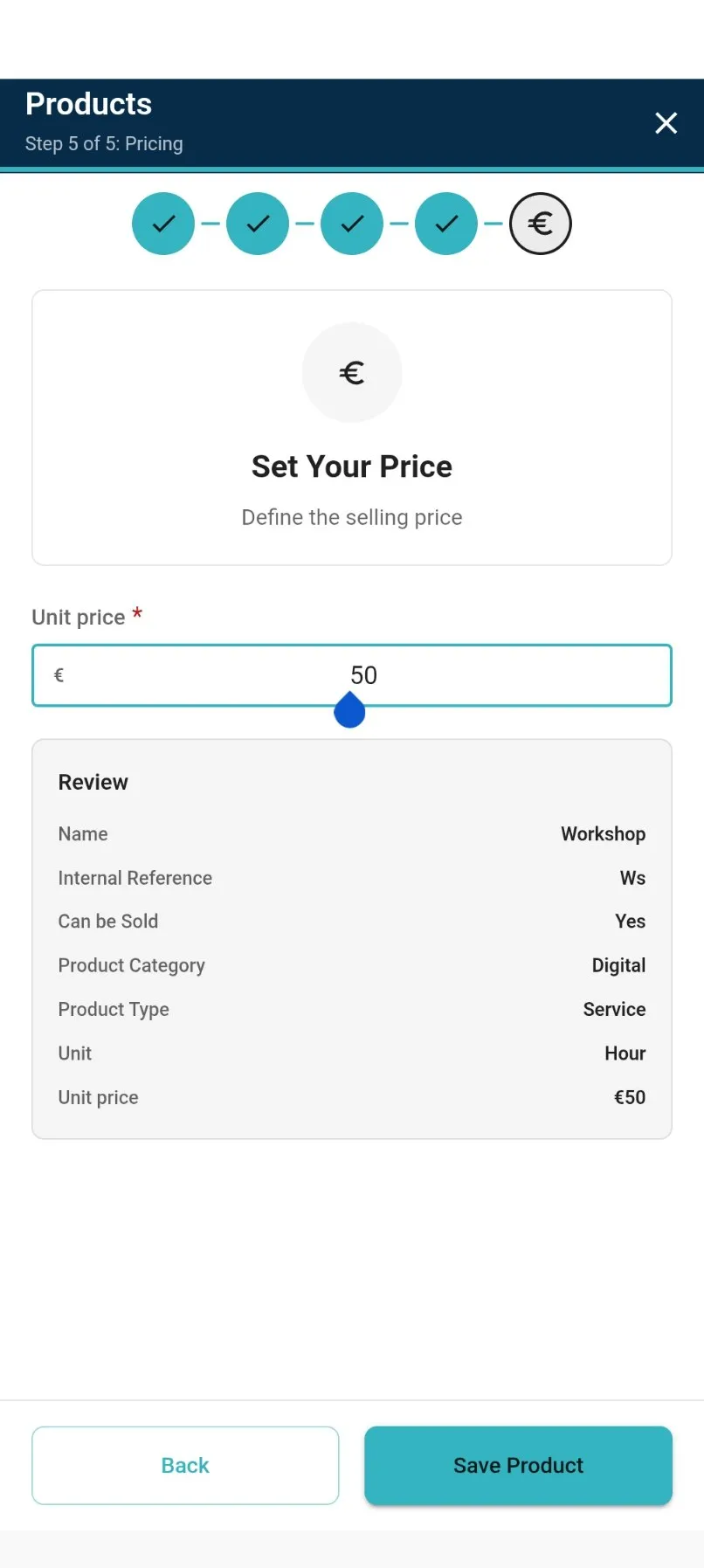
- Pricing. Your selling price. This is the last screen, so it also shows you everything you have typed so far. Check it and tap Save Product.
There is no separate summary screen. You check your answers and save in the same place.
Adding a category as you go
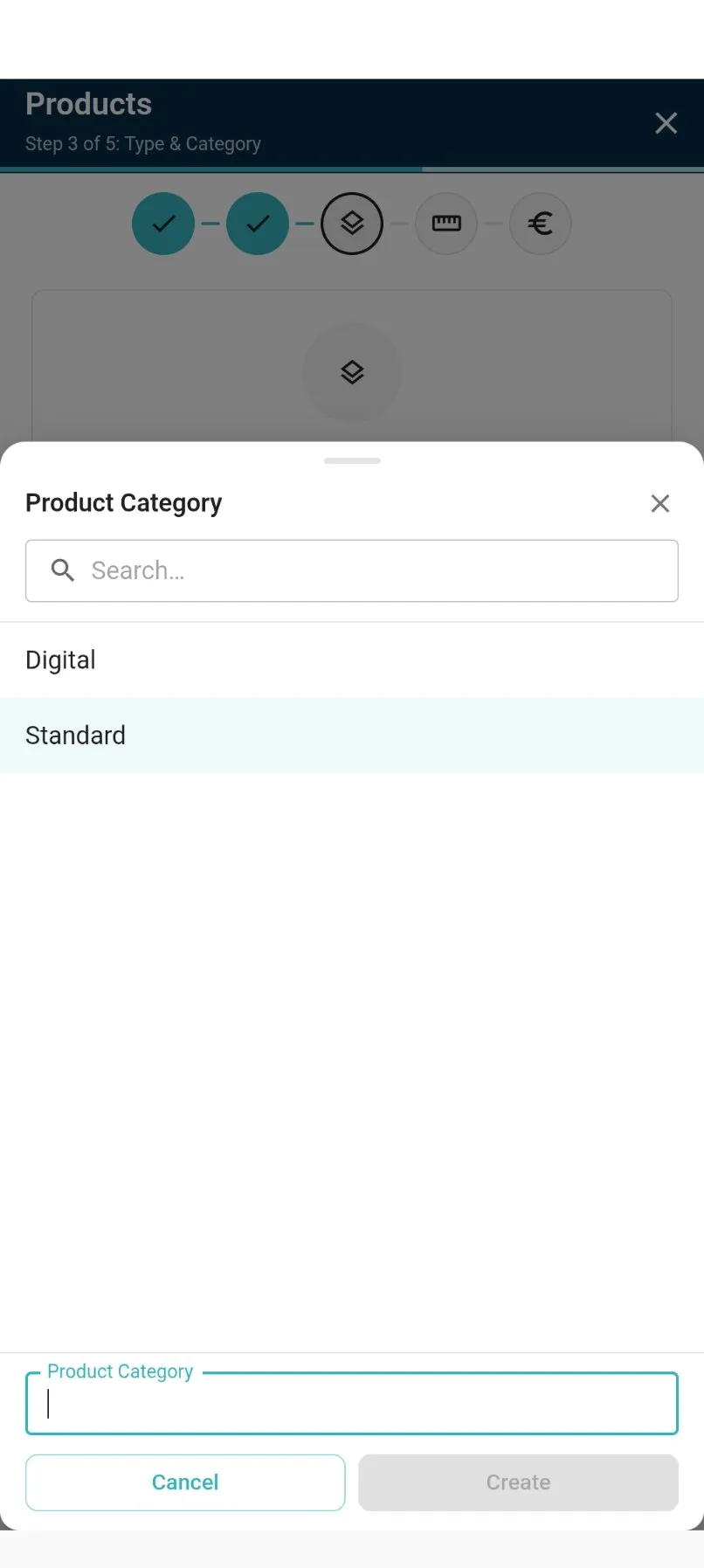
Section titled “Adding a category as you go”- On Type & Category, tap the category box. A list of your categories opens, with a search box at the top.
- At the bottom there is a Create “…” button. It picks up whatever you typed in the search box. If you typed nothing, it just says Create new.
- Tap it. A small box appears with the name already filled in, plus Cancel and Create.
- Tap Create. The new category is added and chosen for this product, and you carry on where you left off.
Changing a product
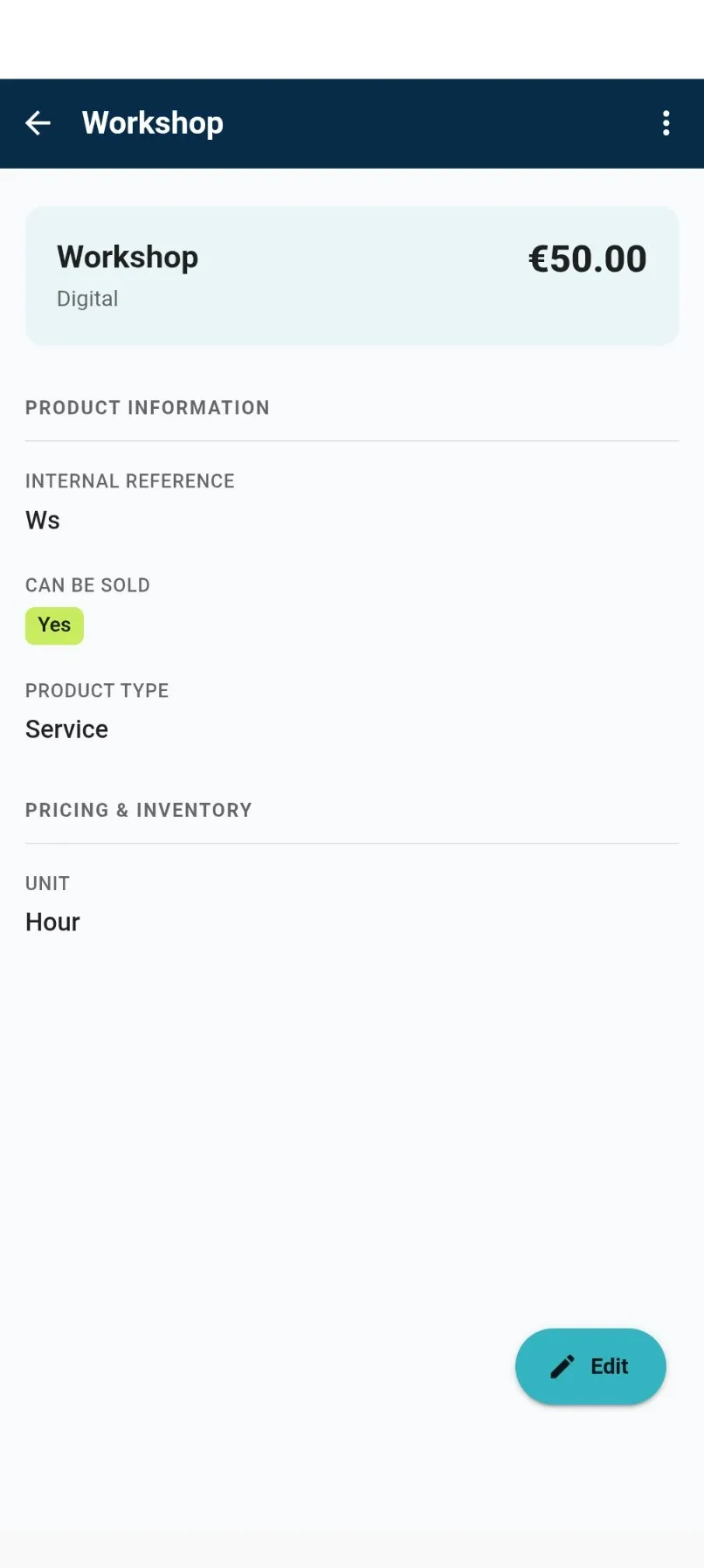
Section titled “Changing a product”Tap a product card to open it. The top shows the name, category and price, and how many you have sold once you have sold any. Below that, everything is grouped under Product information and Pricing & inventory.
Tap Edit to change anything. The list updates as soon as you save.
Removing a product
Section titled “Removing a product”You remove a product from its own screen.
You can only delete a product you have never sold. Once it has been on an invoice, the law says the record has to stay, so Assist4Biz will not let you delete it. It offers to make the product inactive instead.
An inactive product still appears in your Products list, so you can look it up. You just cannot put it on a new invoice. Your old invoices stay exactly as they were.