Customers
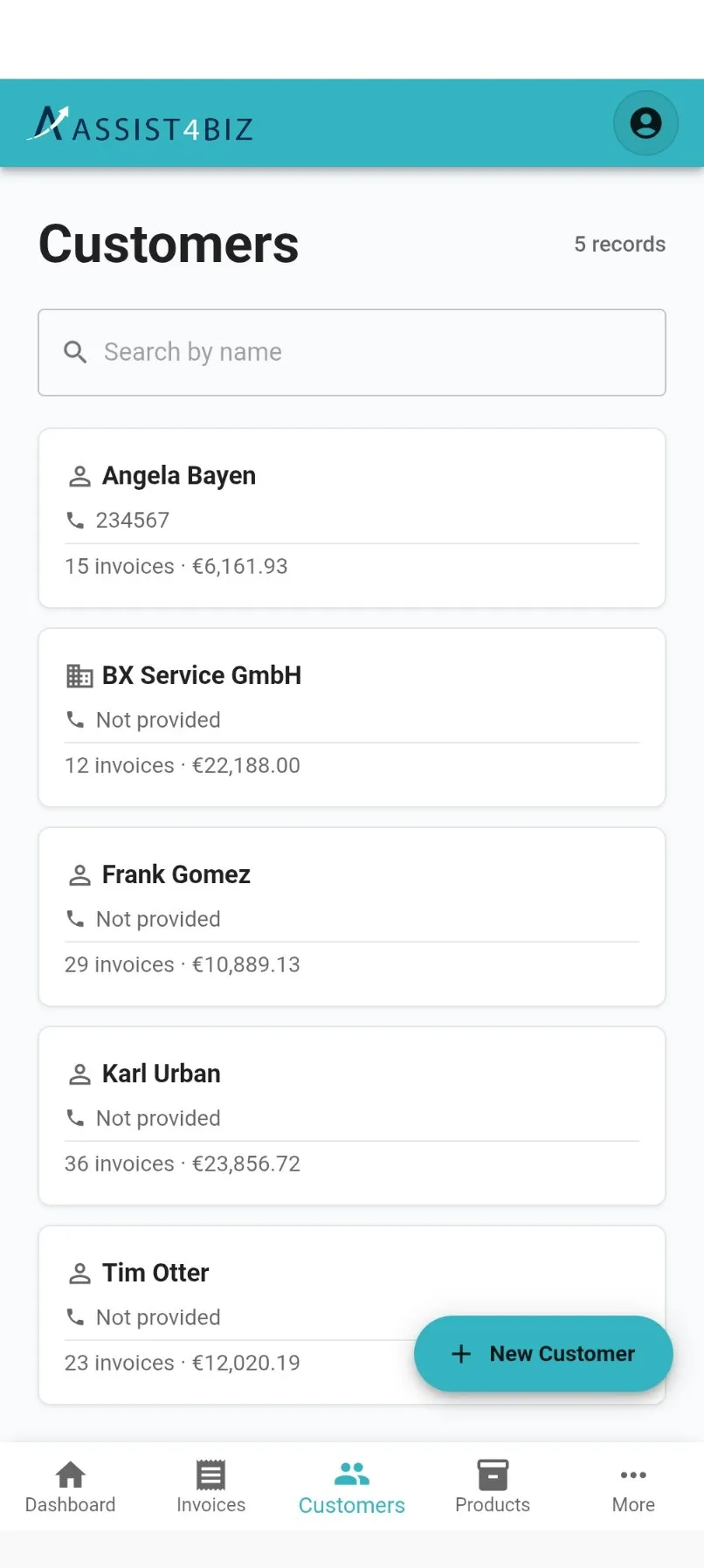
Customers are the people and companies you invoice. Each one has a name, contact details, a tax number and a billing address.
The billing address matters. You cannot send someone an invoice until they have one.
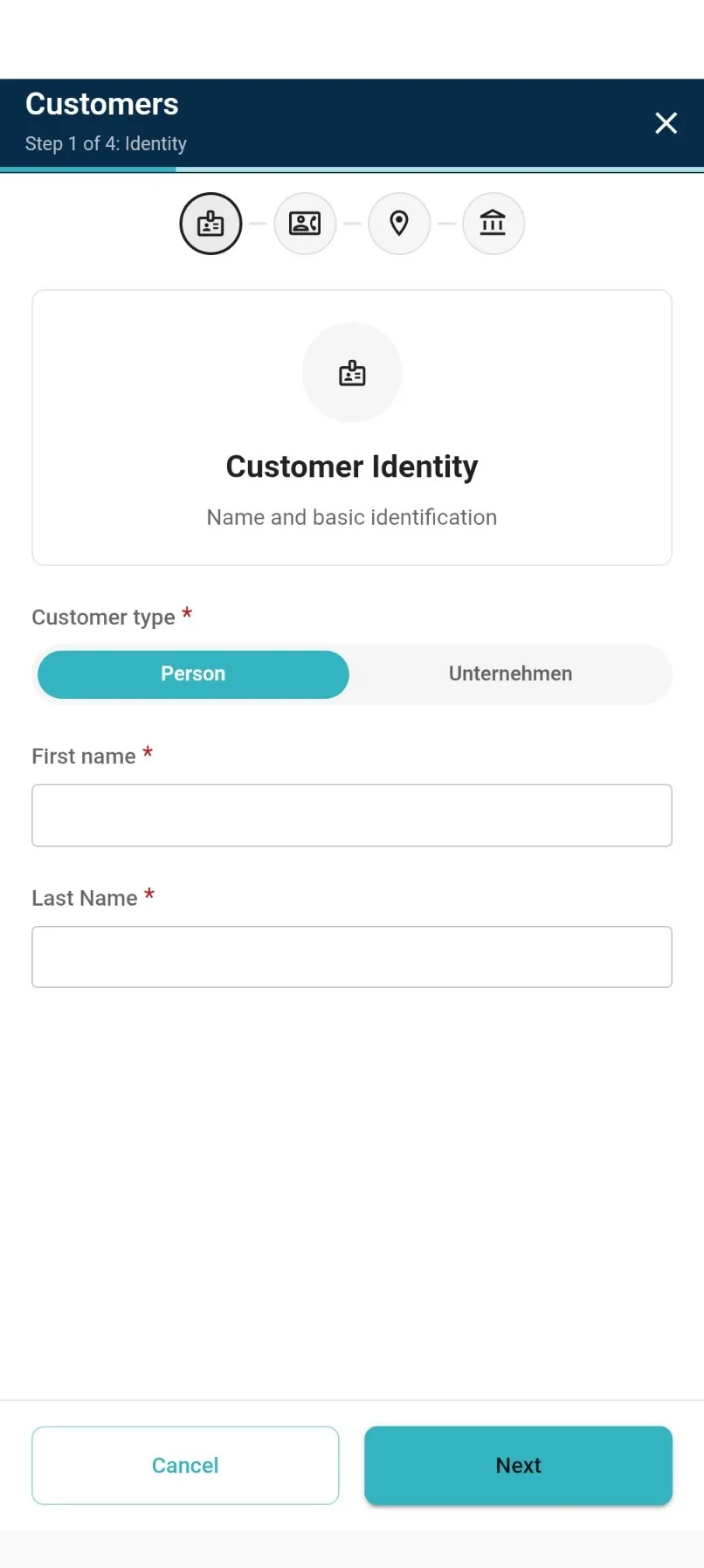
You add a customer over four short screens instead of one long form. Each screen asks for one kind of thing.
What you fill in
Section titled “What you fill in”| Box | What it is for |
|---|---|
| Customer type | A choice between Person and Company at the top of the first screen. It changes what you are asked for next. A person has a first name and a last name. A company has one name. It also sets the small picture on their card: a person icon or a building icon. |
| Name | The name that appears on the invoice. This is also what the search looks at. |
| Phone | Tap it later to ring them straight from the app. |
| Tap it later to start an email. Assist4Biz also uses it to send them their invoices. | |
| Address | Street, postcode and town. |
| Tax ID | Their tax number. |
| Birthday | You can leave this out. It is there if you want to send birthday greetings or run an offer. |
| First invoice | The date you first invoiced them. You cannot type in this one, it fills itself in. Until then it says No orders yet. |
Everyone you add here counts as a customer. Nobody is added as a supplier.
Adding a customer
Section titled “Adding a customer”- Open Customers and tap New Customer.
- Customer Identity. Choose Person or Company. A person needs a first name and a last name. A company needs one name.
- Contact details. Their phone number and email address.
- Address. Street, postcode and town.
- Tax & Details. Their tax number, and their birthday if you want it. This is the last screen, so it also shows you everything you have typed so far. Tap Back to fix anything.
- Tap Save Customer. The new customer appears in your list.
Changing a customer
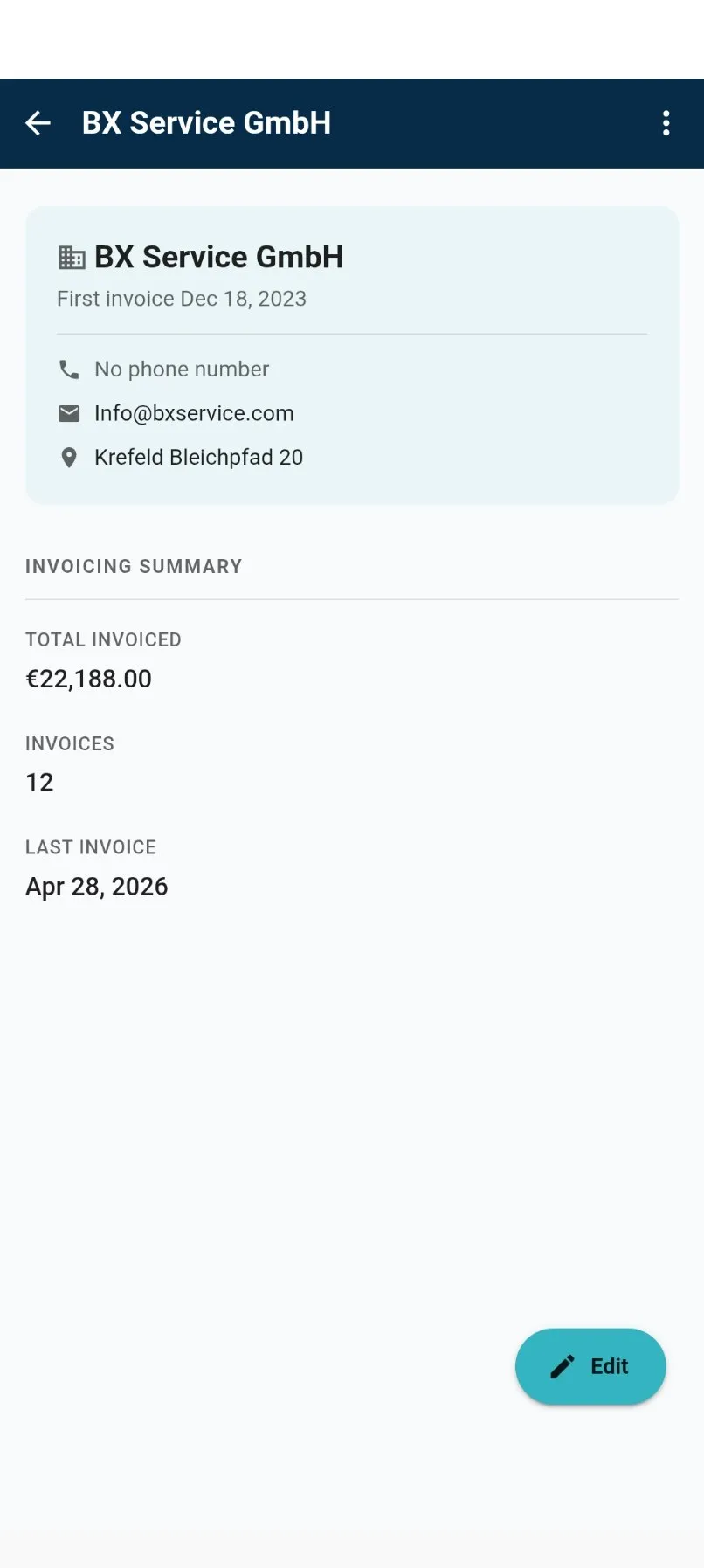
Section titled “Changing a customer”- Tap the customer’s card. The top of the screen shows their name, when they first bought from you, and their phone, email and address.
- Tap Edit, change what you need, and save. Your changes show up straight away.
- The address opens on its own screen, with separate boxes for street, postcode and town.
Further down you get an Invoicing summary. It shows what you have invoiced this customer in total, how many invoices that is, and when the last one was.
Invoicing a customer straight away
Section titled “Invoicing a customer straight away”Open a customer, tap the menu, and choose Create invoice. A new invoice opens with that customer already filled in. You cannot pick the wrong one by mistake.
Deleting a customer
Section titled “Deleting a customer”The same menu has a delete option, and it asks you to confirm.
You can only delete a customer you have never invoiced. Once someone has an invoice, the law says their records have to stay, so Assist4Biz will not let you remove them. If you try, it tells you why and offers to make them inactive instead.
An inactive customer stays in your list but you cannot pick them on a new invoice. Their old invoices are untouched. This is what you want for a customer who has stopped buying from you.