Invoices
An invoice is a customer plus a list of what you are charging them for. You pick the customer, add the lines, and the totals add themselves up as you go.
Before you start you need one customer with a billing address, and one product.
What you fill in
Section titled “What you fill in”| Box | What it is for |
|---|---|
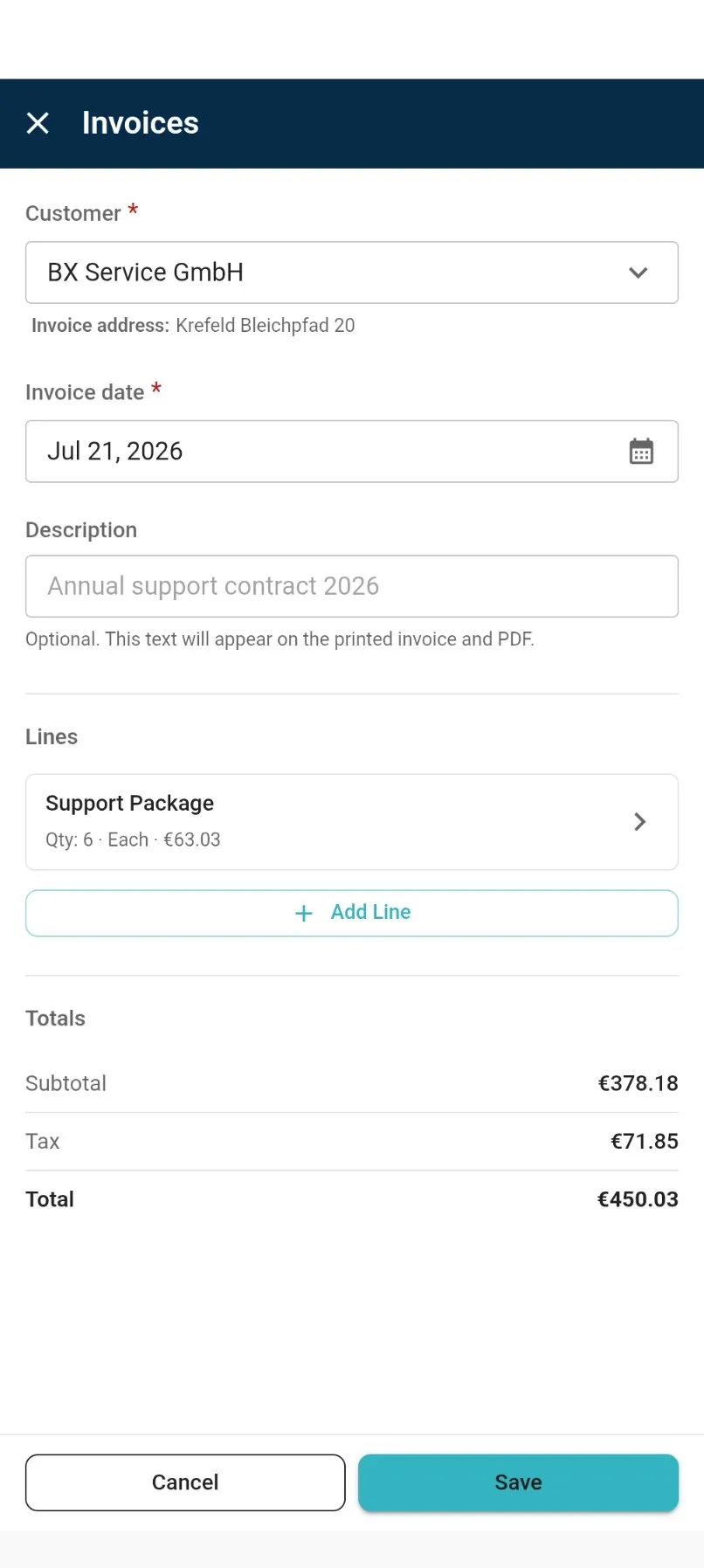
| Customer | Who you are invoicing. Pick them from your list. Their tax number shows too, so you can tell similar names apart. If you only have one customer, they are filled in for you. |
| Invoice address | Appears under the customer once you pick one. This is the address printed on the PDF. |
| Invoice date | Today’s date to start with. Tap it to choose another day. |
| Description | Optional. Whatever you write here shows on the invoice and the PDF. Handy for a reference like Annual support contract 2026. |
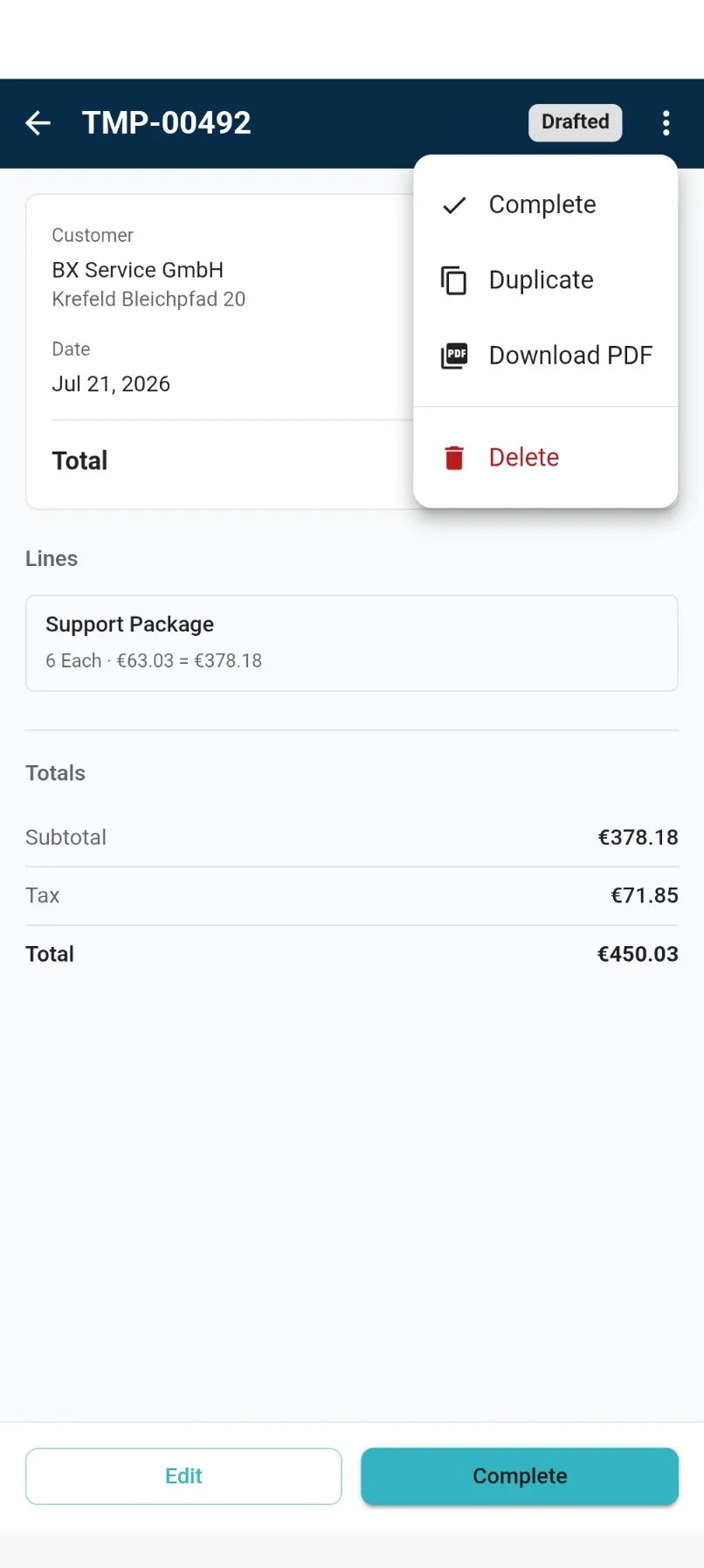
| Invoice number | Filled in for you. While it is a draft it starts with TMP-. It gets its real number, like RE2026-0164, when you complete it. This is what the search looks at. |
| Status | How far along the invoice is. See the table below. |
| Lines | What you are charging for. Each line has a product, a quantity and a price. Depending on your tax setup it may also have a tax rate, see below. |
| Totals | The subtotal, the tax and the total. They appear once you add your first line, and update after every change. |
| Paid | If you track payments, completed invoices show as Paid or Unpaid. |
What each status means
Section titled “What each status means”| Status | What it means |
|---|---|
| Draft | Still being worked on. You can change anything. |
| Completed | Finished and issued to your customer. |
| Voided | Cancelled. |
Making an invoice
Section titled “Making an invoice”- Open Invoices and tap New Invoice. If you have no customers yet, Assist4Biz tells you to add one first. Start there.
- Pick the customer. If they have no billing address, a message appears with an Add address button. Type the street, postcode and town there and carry on.
- Tap Add Line. You cannot tap it until you have picked a customer. The line underneath tells you what is still missing.
- Pick the product. Your most-used products come up first, and you can search from the same screen.
- Set the quantity. Change the price if this sale is different from usual.
- Tap Save. Or tap Save & New to go straight on to the next line.
- Totals now shows the subtotal, tax and total. Add as many lines as you need.
- Tap Save. Your invoice opens, still as a draft.
About the tax on a line
Section titled “About the tax on a line”What you see here depends on how many tax rates you use.
If you use only one tax rate and have set it up that way under Taxes, no tax box appears on the line at all. There is nothing to choose, so there is nothing to get wrong. Assist4Biz applies your rate for you.
If you use more than one, a tax box appears and you pick the right rate on each line. That way one invoice can mix rates.
Completing an invoice
Section titled “Completing an invoice”Saving is not the same as sending. A saved invoice is still a draft with a TMP- number,
and your customer never sees it. Completing it is what turns it into a real invoice.
- Open the draft and tap Complete. It is at the bottom of the screen, and also in the ⋮ menu.
- Confirm. Assist4Biz warns you that the invoice gets its real number and is locked afterwards.
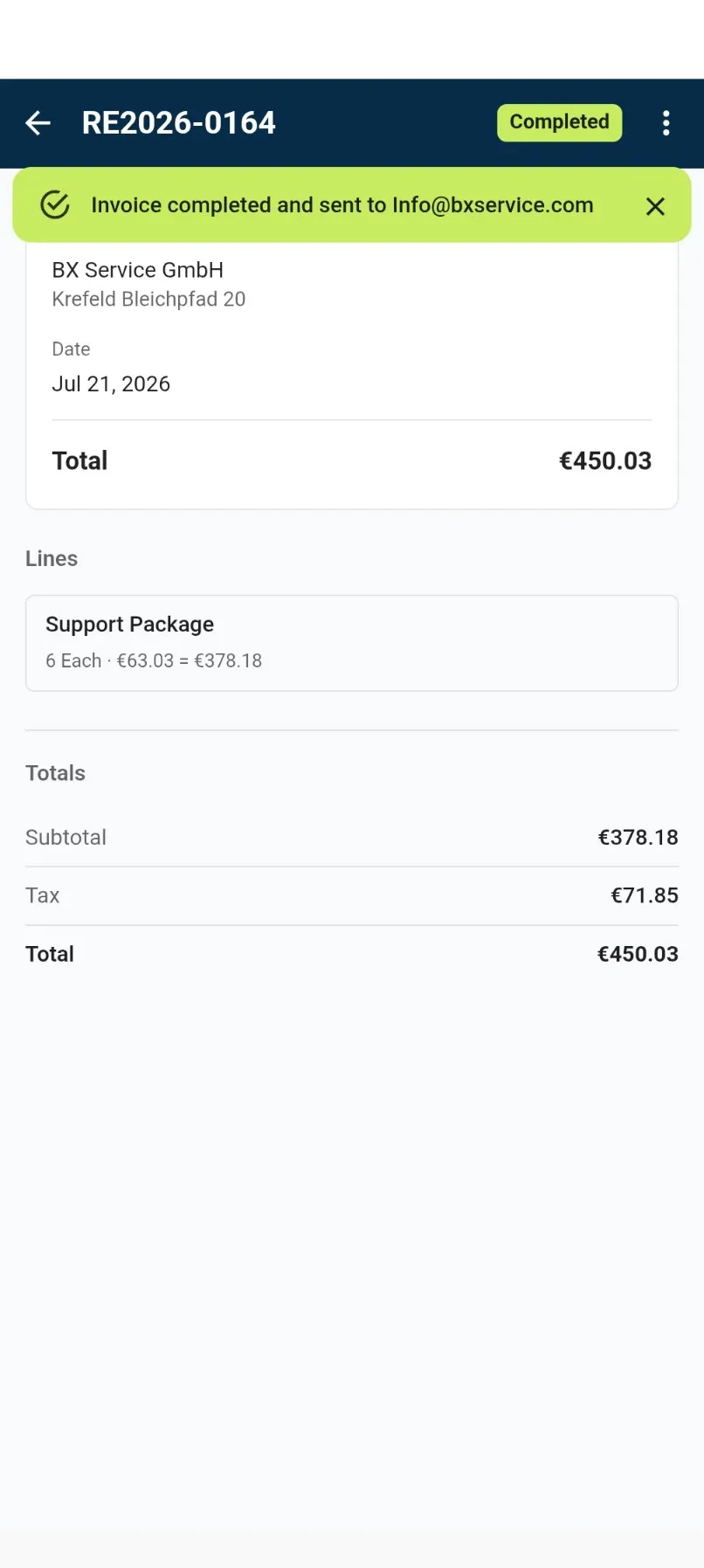
- The status changes to Completed and the
TMP-number is replaced by the real one.
If you have Create e-invoices switched on, completing is blocked until your bank details are filled in under Settings, then Company. Fill them in once and it never comes up again.
Whether your customer gets the invoice by email at this point is up to one setting. If Send PDF automatically is switched on in Settings, Assist4Biz emails it to them straight away and tells you it has done so. If that setting is off, nothing is sent. You can still send it yourself from the menu whenever you are ready.
Changing lines
Section titled “Changing lines”Open a draft invoice and tap any line to open it again. You can change the quantity, the price or the tax, or delete the line. Deleting asks you to confirm, because the line is gone for good.
Completed invoices are locked. You cannot change their lines.
Finding an invoice
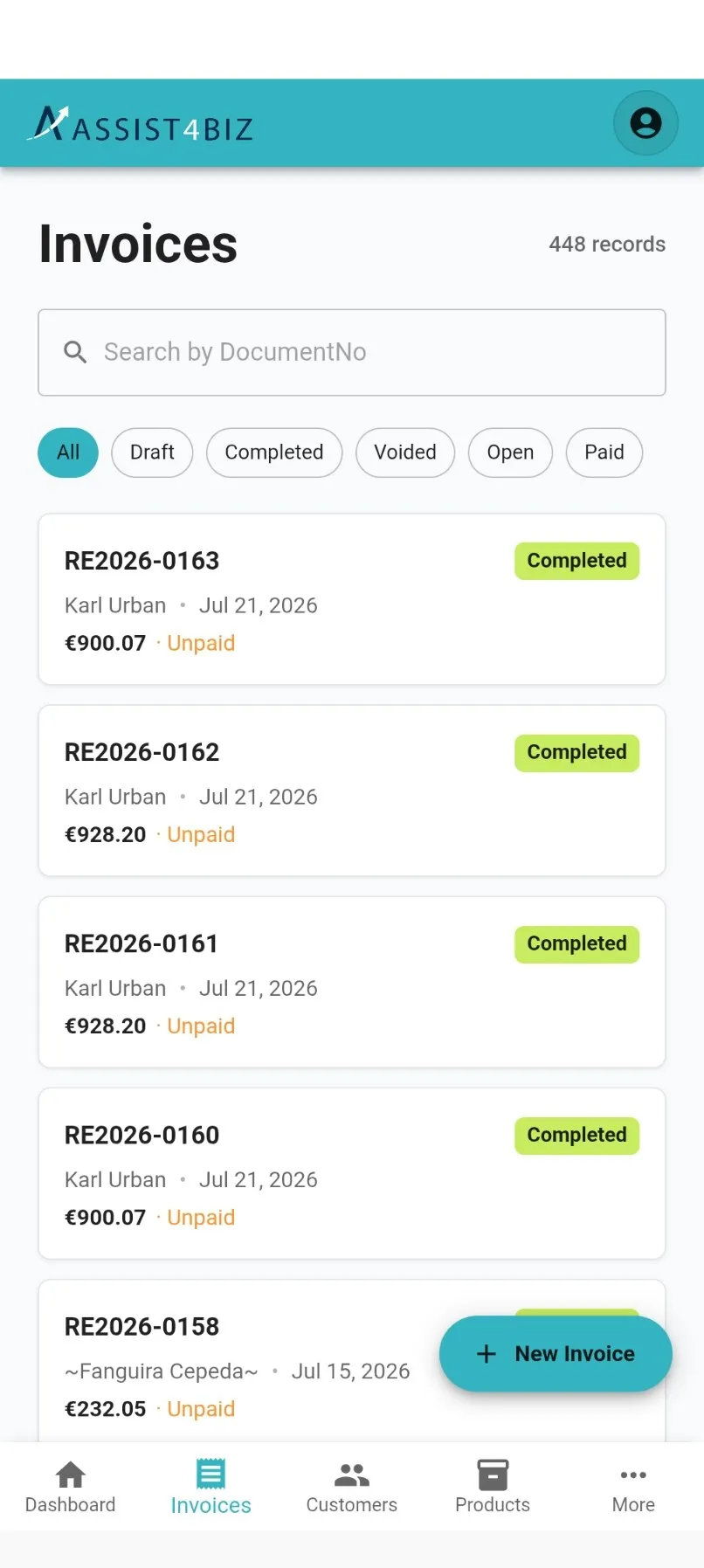
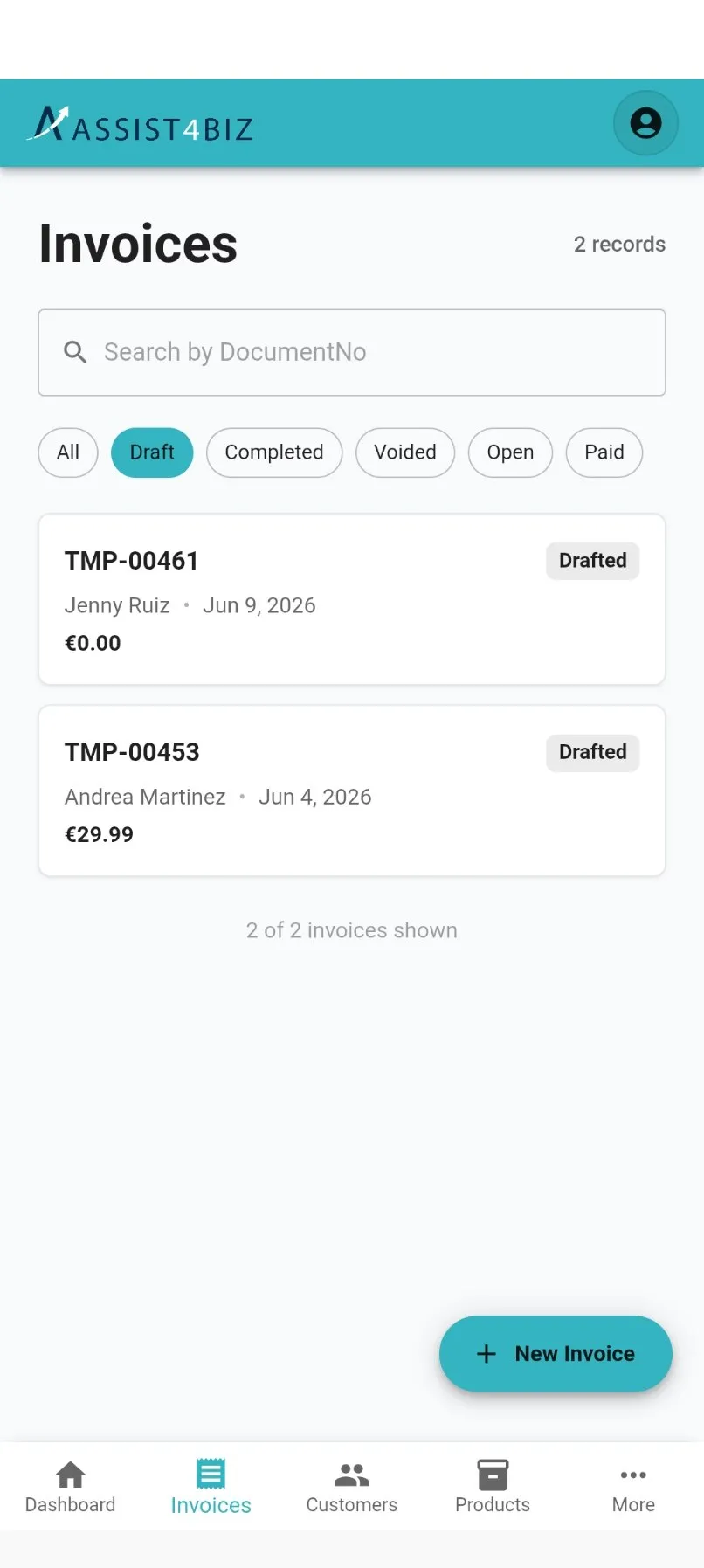
Section titled “Finding an invoice”The buttons above the list narrow it down.
- All. Everything.
- Draft. Not finished yet.
- Completed. Finished.
- Voided. Cancelled.
If you track payments you also get Open for the ones not yet paid, and Paid for the ones that have been.
You can use a button and the search box together to find one invoice number within a group.
What the menu can do
Section titled “What the menu can do”Open an invoice and tap ⋮. What you can do depends on how far along it is.
| What you can do | Draft | Completed |
|---|---|---|
| Complete. Turn it into a real invoice. | ● | |
| Duplicate. Make a copy to edit. Handy for repeat work. | ● | ● |
| Download PDF | ● | ● |
| Send by email. Send it to your customer’s email. | ● | |
| Mark as paid or unpaid. Only if you track payments. | ● | |
| Delete | ● | |
| Void. Cancel an invoice you have already sent. | ● |
You can delete a draft because your customer never saw it. You cannot delete a completed invoice, because the law does not allow it. All you can do is void it, and that leaves a record of what happened.
If your customer has no email address saved, Send by email tells you so.